How to make a Youtube Thumbnail in Pixellab
A good youtube thumbnail can help your video to gain more views and clicks. Even a bad thumbnail with a good video can decrease its reach, because the Thumbnail is not eye-catching and professional. If you are trying to create a thumbnail but not have paid software like photoshop or a heavy device then no problem, Pixellab allows its user to create high quality and eye-catching thumbnails directly from their mobile phones in minutes. This guide will help you to understand how to create high quality thumbnails in Pixellab.
Why a Good YouTube Thumbnail Gets More Clicks and Views
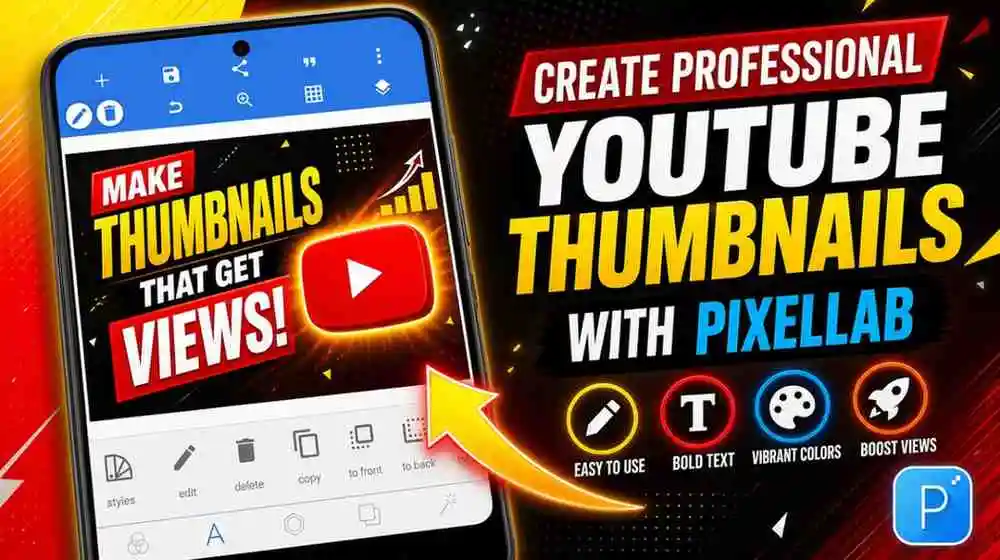
According to an estimate 90% of your video’s views depend upon your thumbnail. Thumbnail is the thing that people see before seeing the video, so if a thumbnail is eye-catching then it can get more clicks. A good thumbnail has bright colors, clean and clear text, and a simple and modern design that the viewers can understand. When a video has a good thumbnail it will get more clicks and the youtube will recommend it to new and more people, this teaches the importance of a thumbnail.
Things You Need Before Starting to Make Your YouTube Thumbnail
Pixellab
You must have the pixellab latest version downloaded, because it has premium features like Image size, magic effect, chroma key, layer management and much more. You can download pixellab from playstore or Pixllabhub.com.
High-Quality Image
You must have a high quality image that can be used as your background. For example, in a cooking channel or a teaching channel, there must be a photo of the chef or teacher. In a gaming channel, you can use the image of a shocking gameplay moment.
A custom font
If you are making a video for a brand then you can use Pixellab’s custom font feature. You can import custom fonts in pixellab by using My fonts option, it allows .TTF and .OTF fonts format.
Basic knowledge of Layers
Pixellab layer management tool can help you to make your thumbnail more professional. It is one of the most premium features of Pixellab. You should know how to add a new layer, duplicate layer or change the layers of elements. This is the common feature in professional editing applications.
How to Make a YouTube Thumbnail in PixelLab
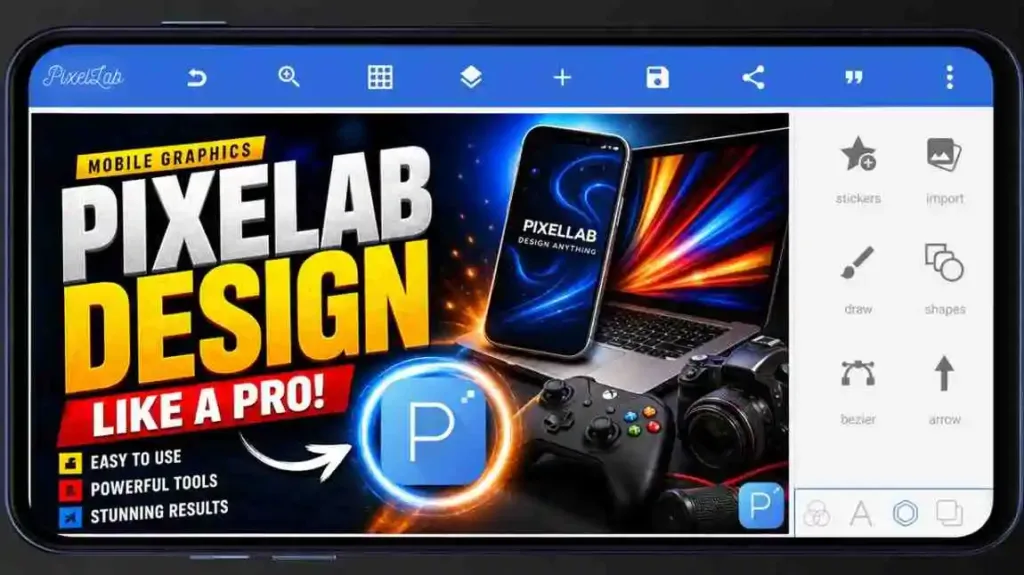
Now you have all the necessary knowledge for PixelLab editing, you can start creating thumbnails in PixelLab. After making 150+ thumbnails in PixelLab, our team has created this guide to help you create thumbnails that get clicks and attention. Follow these steps carefully to start making professional thumbnails for your YouTube videos.
Choose the Dimensions for Thumbnails
When you created a new project in Pixellab then click on the three dots (⋮), then go to the image size. Now write the image sizes 1280 px Width and 720 px height, this size is exact canvas size for Youtube thumbnails.
Import and Enhance your Background Image
To import your background image simply follow these steps.
- Click on the “plus” (+) button and then “add image”.
- Choose your image and align it perfectly according to your canvas borders.
If you want to enhance your image to give an aesthetic look you can add a color contrast to it. Simply add a rectangle in your design by (+) icon and then align and size it according to your design’s border, now just choose the color you want for contrast and use the transparency for the bottom toolbar to add color contrast in your background.
Use Multiple fonts and Bold text
Tap on the text button by clicking on the (+) icon, now write the text you want to add in your thumbnail, keep the text short (3 – 5 words). You can also use the custom fonts option by uploading your preferred fonts in Pixellab and starting to use them in the Thumbnails. When you are adding text don’t overuse styling like bold italics and custom fonts, keep the text easily readable and clean.
Add Your Main Focus Image
Do you want to use your own image or a product in your thumbnail? First, import a PNG image from your gallery into the design. Now, simply resize it according to your design and place it on the right side of the thumbnail. You can use the Layers feature to manage elements and images in your design professionally. You can also add a glow behind your image by importing a glowing sticker image from your gallery into PixelLab.
Add Shapes, Arrows & Shadow Effects
You can also use shapes and other decorative elements into your design to make it more attractive and eye-catching. If you want to add shapes just follow these steps;
- Click on the Plus (+) icon.
- Click on the Shapes.
- Select the shape.
- Resize and align it according to your design.
You can also add shadow effects and intensity filters to your shapes by simple tools in the toolbar at bottom.
Export you thumbnail without losing quality
When your design is made, now you have to export your design, just click on the export button at top right of the interface. Choose save as an image and Image format JPG(JPEG). Keep in mind to export with the 100% quality option.
Tips to Make Your YouTube Thumbnail More Clickable
If you want to make your thumbnails eye-catching and attractive then these tips can help you a lot.
- Don’t use a lot of text, maximum use 3-5 words that are easily readable and can be understood by viewers.
- Use emotions that match your video intent, for example if you make gaming videos then you can use shocking game moments.
- Use the same design feel overall in your thumbnail, don’t use multiple types of fonts and shapes.
- Make two thumbnails for each video and use youtube studio A/B test to check which one earns more clicks.
Best eye-catching colours for YouTube Thumbnails
Color combinations play a key role in your thumbnails, our professional team has provided this list of attractive color combinations.
Yellow + Black
Yellow and Black create a light and dark theme, this color combination is best for shocking video thumbnails.
Red + White
This color combination provides energy and best for urgency thumbnails.
Blue + Orange
The blue and orange color combination is great for daily vloggers, and teaching channel videos.
Green + White
This is for premiumness, this color combination can be used in Lifestyle videos, podcasts and e.t.c.
Conclusion
Making scroll-stopping thumbnails doesn’t require expensive subscription or heavy devices, they just require perfect canvas size,correct color combination, simple design and clear text. Pixellab made it easy for the people to design their video thumbnails directly from the mobile phone without any paid tool. Pixellab is the complete package for the beginners to start their professional editing journey and create attention grabbing thumbnails. This blog is a complete guide for the users to start making thumbnails in pixellab and get more clicks in their videos.